Moving the chart
Turning the chart, and squaring it up
Shift + drag with a mouse, or twist two fingers on a touch screen. The chart turns about the centre of the view.
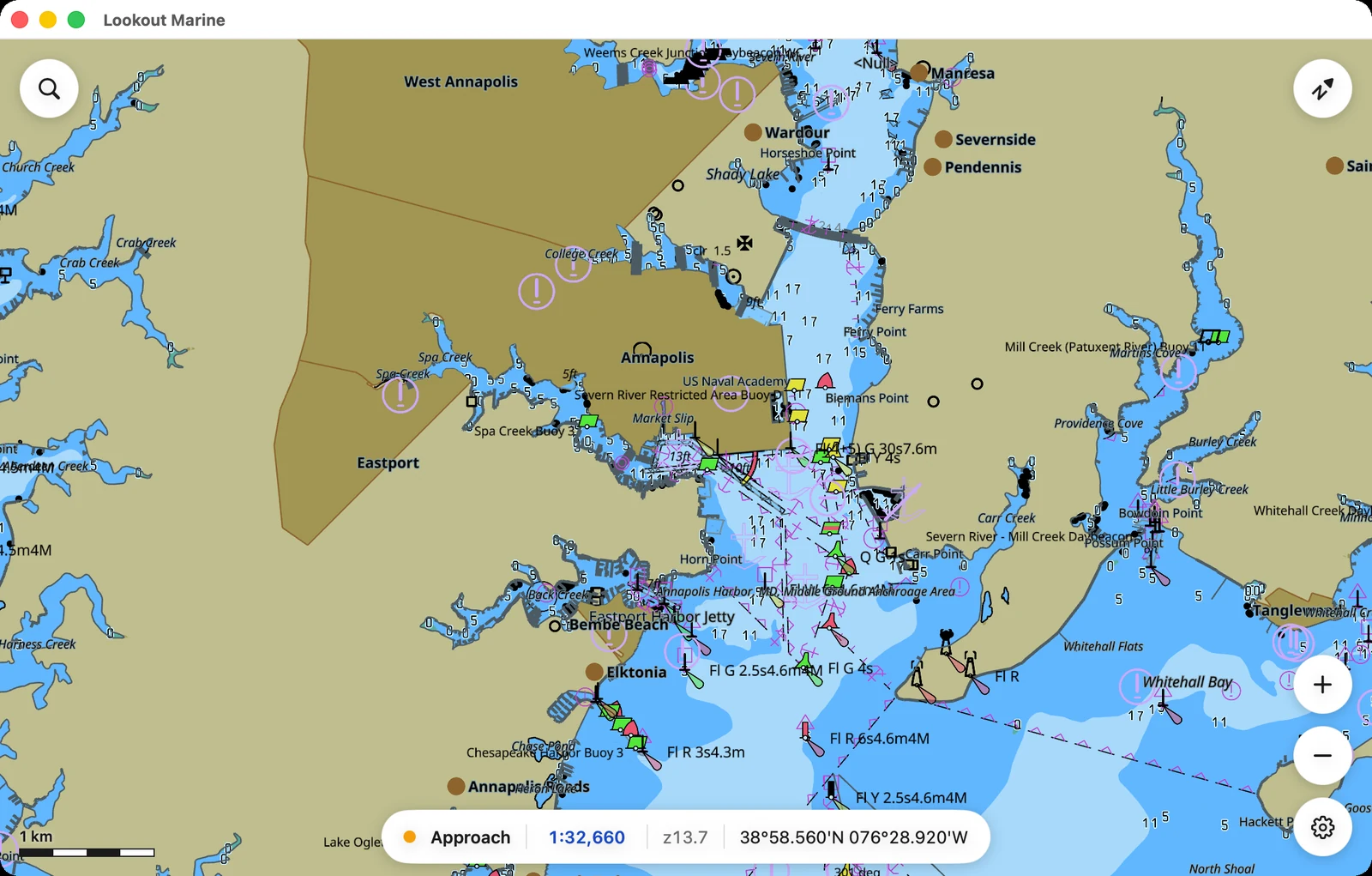
The north bubble in the top right corner points north the whole time. Press ⌘↑ (Ctrl+↑) and the chart returns to north-up.
Clicking or tapping the bubble does something else: it locks the chart to your boat. See holding the boat on the screen.

On a touch screen the twist waits until you have turned about 18 degrees. Two fingers never pinch without some twist, and without the pause every zoom would also spin the chart.
Going to a scale
Click the blue scale in the bar at the bottom.
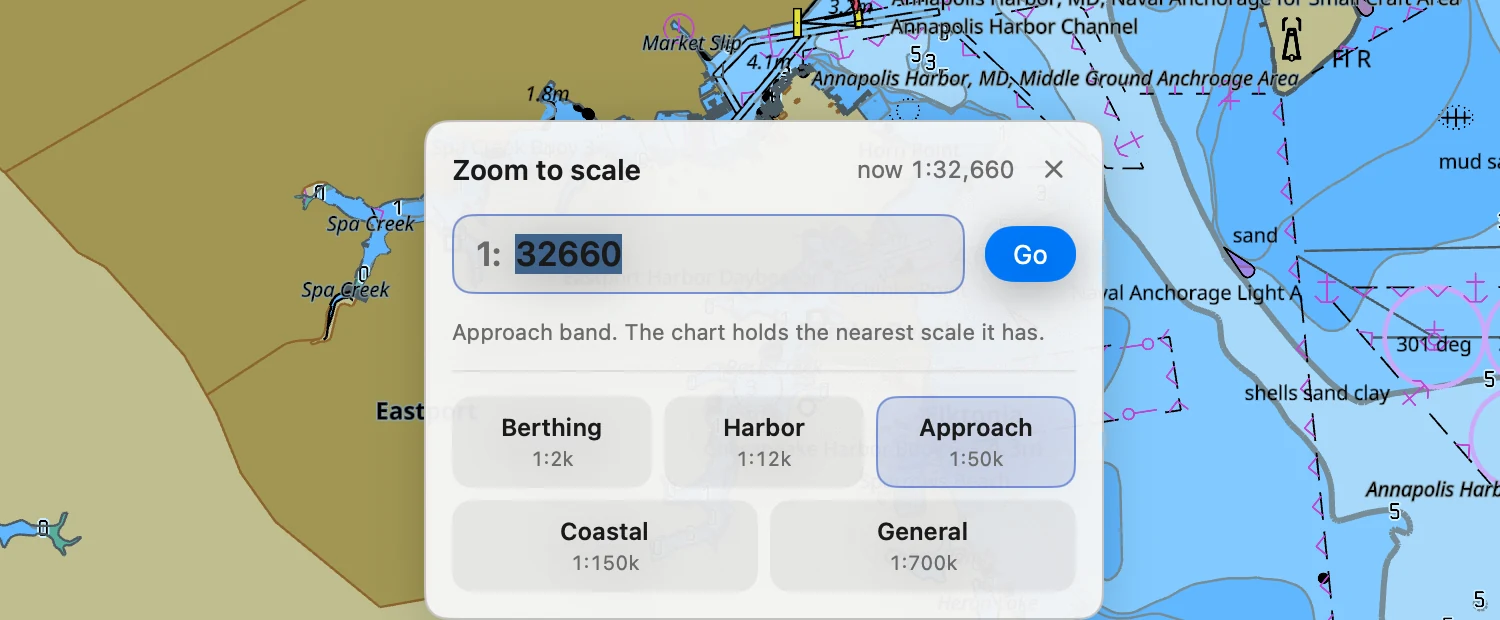
- Type a scale and press Return.
25000,25,000,1:25000and25kall mean the same thing. - Or pick a band: Berthing, Harbor, Approach, Coastal, General. The band you are in is marked.
If you ask for more than the survey holds, the chart stops at the closest scale it has.
Searching for a position
The search bubble is in the top left corner. Type a position and press Return. Latitude first:
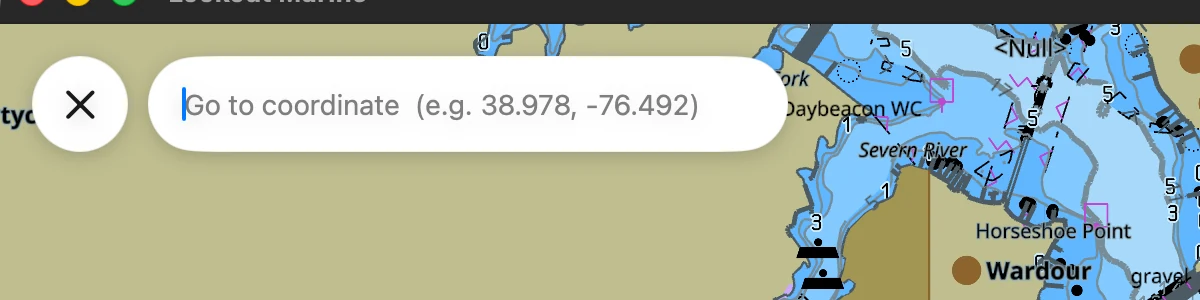
38.978, -76.49238°58'40"N 076°29'32"W, or38 58 40 N, 76 29 32 W
The zoom and the rotation stay as they are. Search by place name is not available yet.
Keyboard shortcuts
Mac uses Command. Windows and Linux use Control.
| Key | Action |
|---|---|
| ⌘O | Open a chart or a folder |
| ⌘+ and ⌘− | Zoom in and out |
| ⌘0 | Fit the whole chart |
| ⌘↑ | North-up |
| ⌘L | Next colour scheme: day, dusk, night |
| ⌘T | Text on or off |
| ⌘⇧S | Soundings on or off |
| ⌘D | Full detail on or off |
| ⌘, | Mariner settings |
| Ctrl+F | Search (Windows and Linux) |
Mouse and trackpad gestures
| Action | Result |
|---|---|
| Drag | Pan. Throw it and the chart coasts to a stop. |
| Shift + drag | Turn the chart about the centre. It follows the drag. |
| Wheel, or two-finger scroll | Zoom at the pointer. |
| Pinch on a trackpad | Zoom at the pointer. |
| Click | Pick report for what is under the cursor. |
| Double-click (Windows) | Zoom in at the pointer. |
Touch gestures
| Action | Result |
|---|---|
| Drag one finger | Pan. Throw it and the chart coasts to a stop. |
| Pinch | Zoom between the fingers. |
| Twist two fingers | Turn the chart. |
| Tap | Pick report for what is under your finger. |
| Double tap | Zoom in. |
| Two finger tap (iPad and iPhone) | Zoom out. |